The Basics
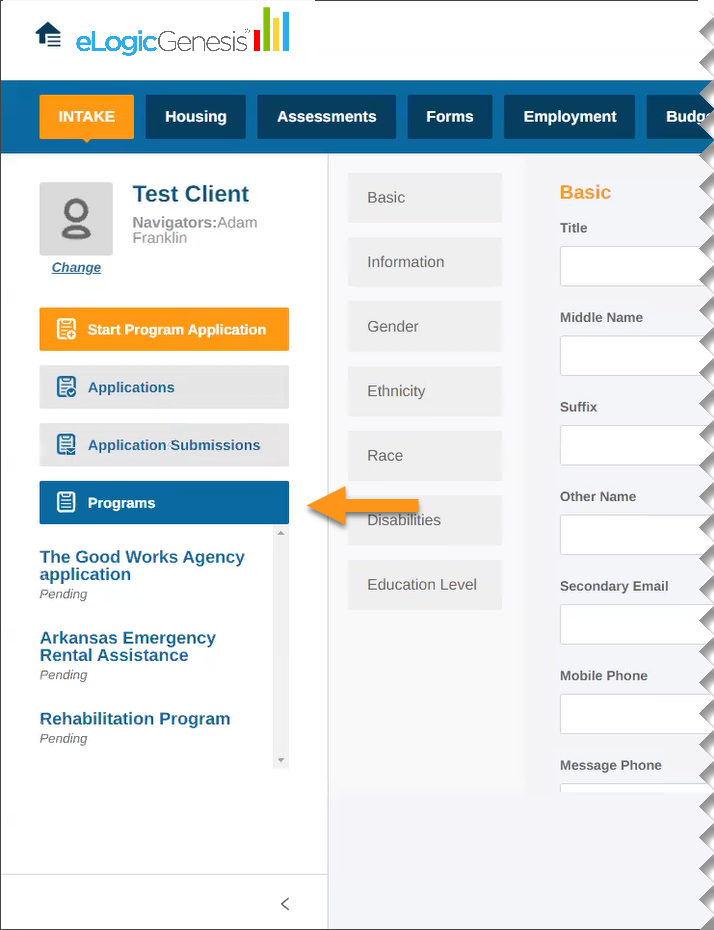
The Sidebar located on the left side of your screen is a helpful tool integrated with shortcuts. From there, you will be able to access applications and programs information as well as submit applications, and view timeline progressions.
Table of Contents
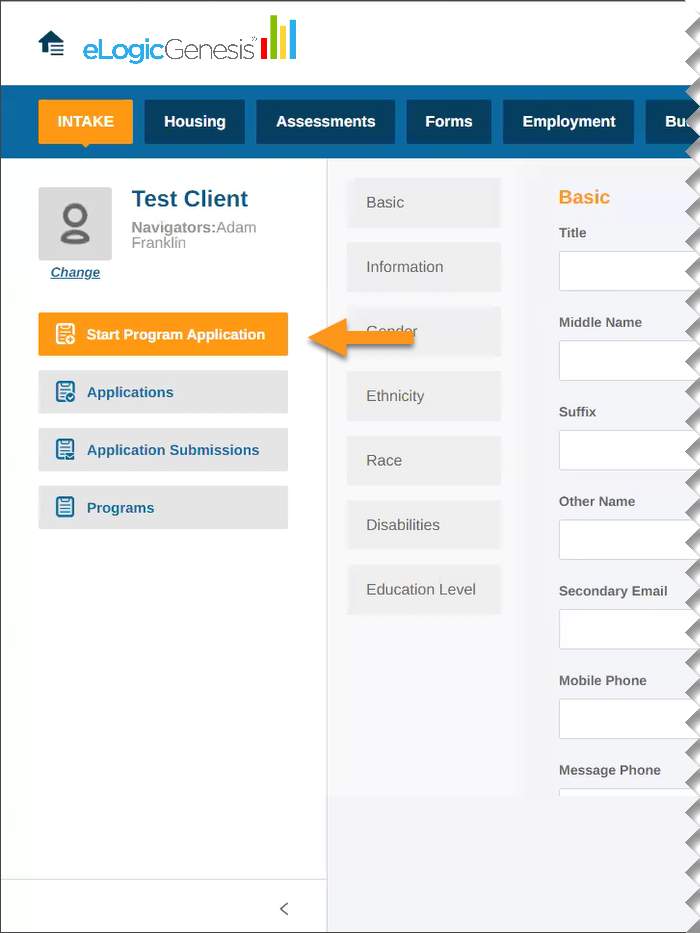
Start Program Application
When clicking the Start Program Application button, the application wizard will launch and walk you through the application process.
Applications
When clicking the Applications button, all applications started will be displayed. This will show the status they're currently in, and what data is required to complete incomplete applications. You will also be given the option to submit finished applications.
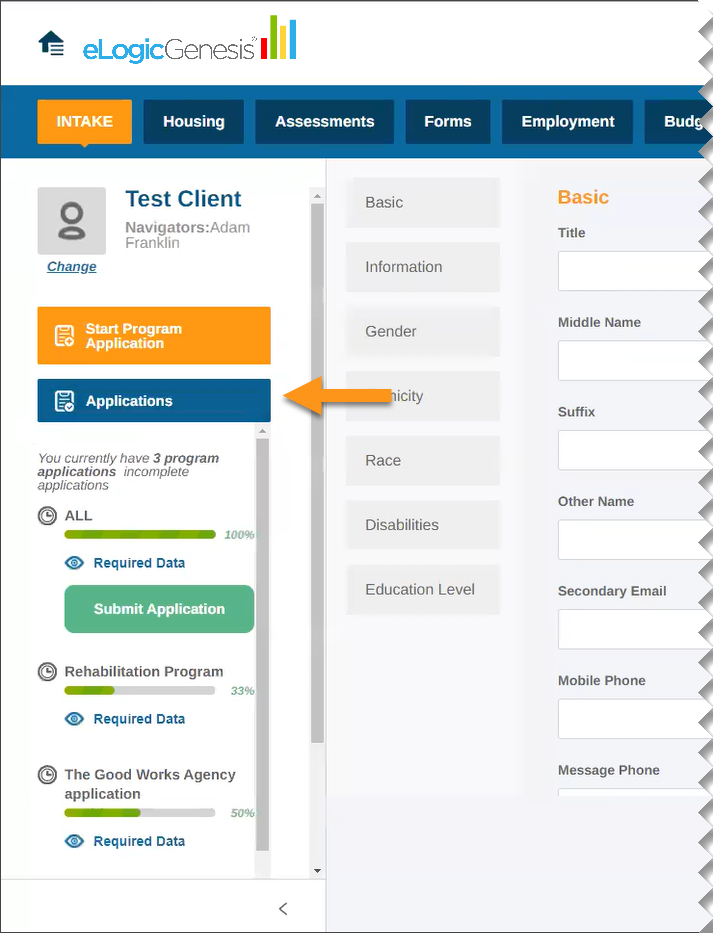
Required Data
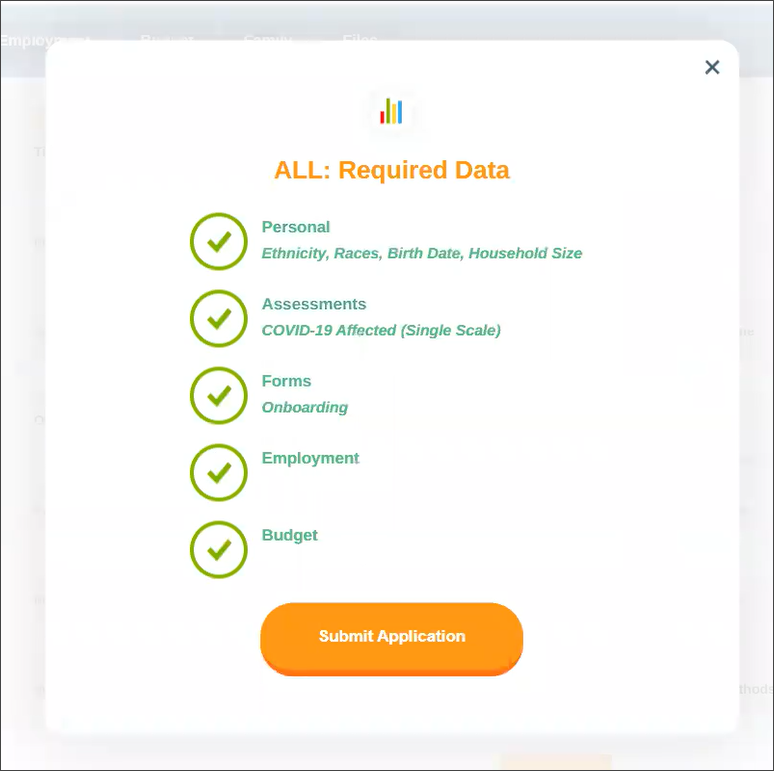
If you click the "Required Data" button under an application in progress, an overlay will display which information is required to complete the current application. Required fields that have been satisfied, will show a green checkmark next to them as it does in the example below. You may click "Continue Application" and the application wizard will walk you to your next steps.
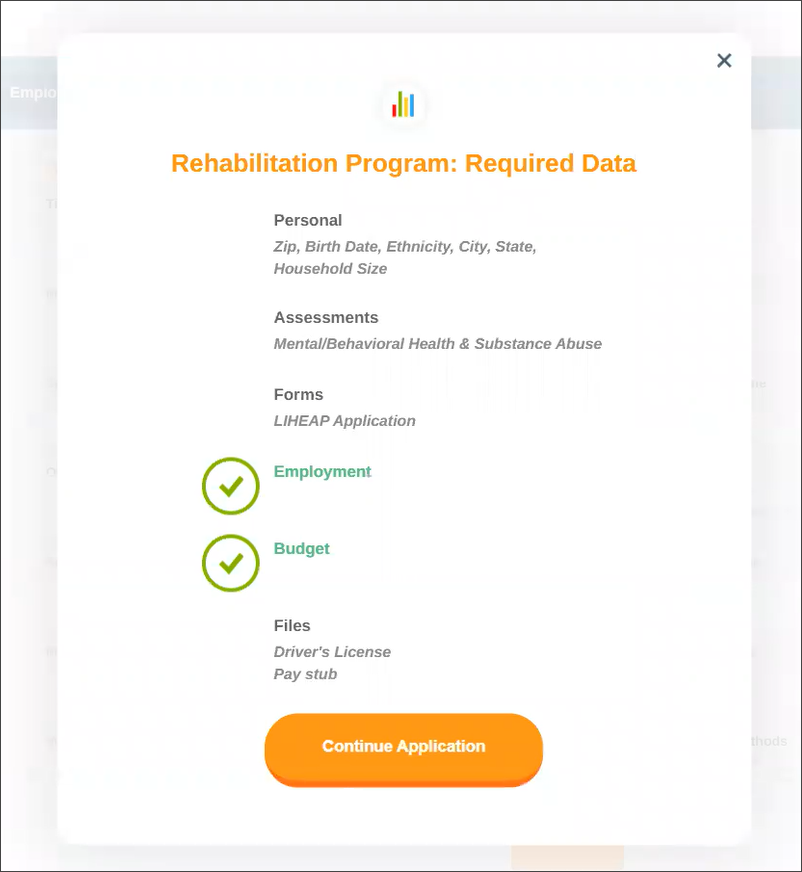
If the required fields have been satisfied, you will have the option to submit your application while in this overlay.
Application Submissions
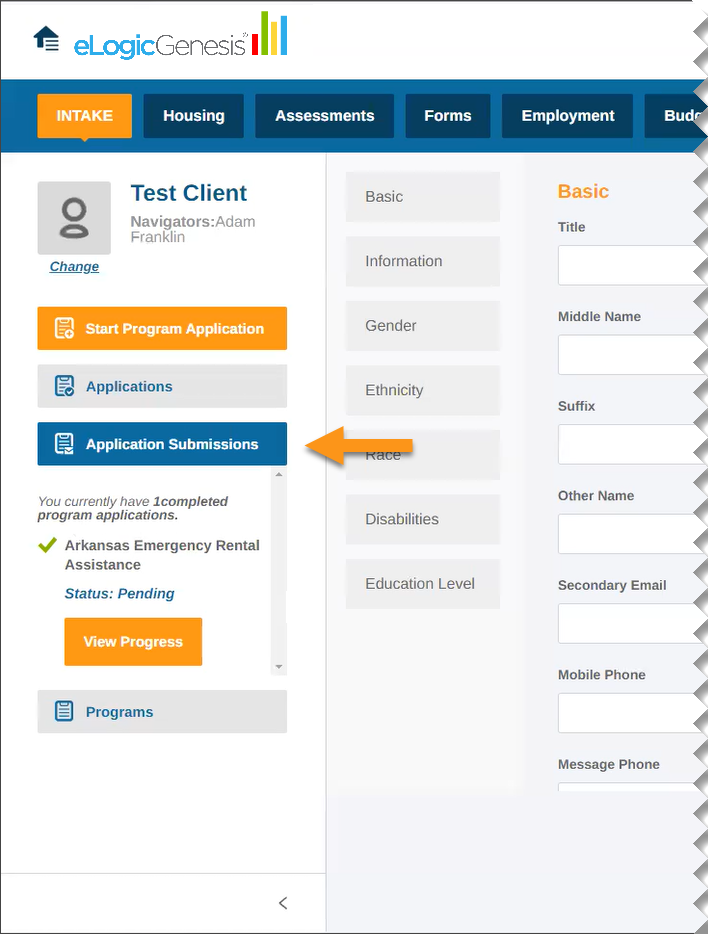
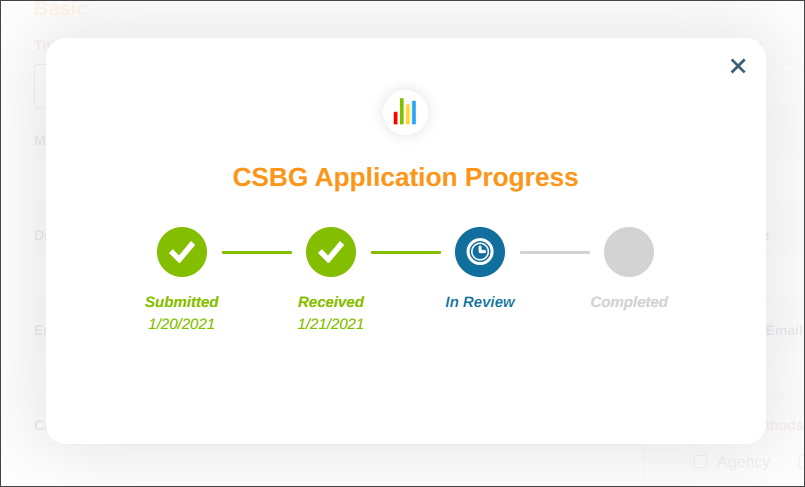
This section will display all submitted applications, their progress, and their status.
Timeline Progression
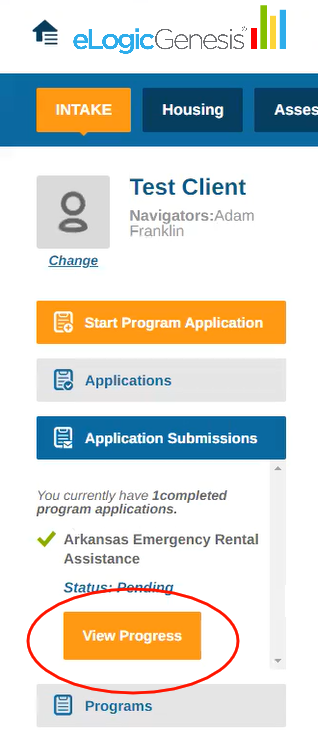
Under the Application Submissions tab, you will be given the option to View Progress on submitted applications.
Programs
This tab will display the active programs you've applied to and their status. This tab will only appear after you've already been enrolled in a program.